Manage MyKey+
Learn more about when to use a mobile barcode (QR codes) vs. ticket, the difference between the mobile app and the web portal, how to manage your balance and more!


Learn more about when to use a mobile barcode (QR codes) vs. ticket, the difference between the mobile app and the web portal, how to manage your balance and more!
On the MyKey+ app, users have the option to purchase tickets or scan their barcode. The barcode looks like a QR code.
Tickets (2 Hour and Day Pass) are in the MyKey+ app Wallet or on the web portal and are best used to purchase rides for multiple people (for example, friends and family members).
To purchase tickets on the MyKey+ app, select “Purchase a New Ticket,” choose your ticket type and how many, tap “Add Tickets,” pay for your purchase and activate your ticket(s). Then, scan your ticket(s) on the bus validator. Tickets are one-time purchases that do not receive fare capping benefits.
To purchase tickets from the web portal for your MyKey+ Wallet, select “Buy Now,” choose your ticket type and how many, pay for your purchase and your tickets will appear in your MyKey+ app. Open your app, activate your ticket(s) and scan them on the bus validator.
Tickets are one-time purchases that do not receive fare capping benefits.
The barcode, which looks like a QR code, is connected to your MyKey+ account. Barcodes do receive fare capping benefits.
Please note that riders must choose between using their barcode or physical MyKey+ card to receive fare capping benefits. A rider cannot use both on the same day or week and receive fare capping benefits. For more about fare capping, click here.
Tokens are specific fare designations associated with a MyKey+ account or card. This is where you will find all the MyKey+ cards, along with the mobile QR code you created, that are registered to your account. All of the tokens registered to your MyKey+ account will use the balance in your MyKey+ Wallet.

Register your card to your MyKey+ account to load funds using debit or credit directly in the mobile app. You can download the MyKey+ mobile app from the Apple App Store or Google Play.
You also can track your rides by tapping on “Activity” on the menu at the bottom of the home screen.
Then, to pay for your ride, just tap the back of the MyKey+ card on the end, black pad of the bus validator.
Link your card to your MyKey+ account to load funds using debit or credit using the MyKey+ web portal. Tap the back of the MyKey+ card on the end, black pad of the bus validator.
You also can track your rides by navigating to the “Tap & Ride” tab and scrolling to the “History – Preview” section to view your last three trips, tickets and transactions.
Then, to pay for your ride, just tap the back of the MyKey+ card on the end, black pad of the bus validator.

In the app or on the website, you can manage your balance by linking a card. Learn more about adding funds here. One MyKey+ account is used for all MyKey+ card taps, barcode scans and ticket purchases.
Balance Protection
Registering your MyKey+ card to your MyKey+ account helps protect your fare balance if your card is ever lost or stolen. When your card is linked to your account, your funds remain secure and can be transferred to a replacement card. Without registration, any balance stored on a lost card may be unrecoverable.
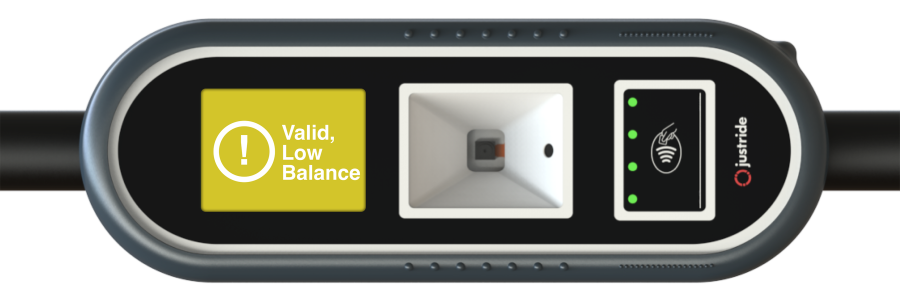
Have less than $2.75 in your MyKey+ account? Don’t worry! You will see a yellow screen on the validator when you tap or scan that alerts you of your low balance, but the MyKey+ app allows you to take one ride, even if you do not have sufficient funds. This one ride creates a “negative balance” that can be resolved once funds are added from a linked payment card, with cash at a Retail Network location or the Customer Care Center at the Julia M. Carson Transit Center (CTC).
Riders can only be logged into the MyKey+ app on one mobile device. If a rider uses a new phone or other mobile device to log into their MyKey+ account, they will use a “device credit switch.” A device credit switch allows a rider to log into their account using a new, unrecognized device. Device credit switches help prevent app sharing and protect our riders from fraud. Riders are allotted a maximum of three (3) device credit switches.
Logging out, then logging back into your account on the same phone or mobile device does not consume a credit.